
Roblox Upgrade Error Fix: Every Device, Every Cause (2026)
You tapped Play. Roblox opened. Then that message showed up: “Your version of Roblox is out of date and will not work properly.” You hit Upgrade, the app sent you to the Play Store or App Store, and there was no update button. Just “Open.” So you went back to Roblox, and the same screen appeared again.
That loop is exactly what people go through. Not because they did something wrong, but because Roblox and the app stores sometimes disagree about what “up to date” means. The fix exists, it works on every device, and this guide covers all of it.
If you use the Delta executor for scripts, there is a specific section for you, too, because the executor version of this error works differently from the standard Roblox one.

Roblox Upgrading Stuck? Here Is Why It Freezes
The Roblox upgrading stuck problem is different from the upgrade loop. In this case, the update starts but never finishes. The progress bar freezes, the app hangs, or it silently fails and opens the same error screen again.

Common causes:
- Not enough free storage space on your device
- Internet connection dropped mid-download
- Roblox servers are down or under load at that moment
- Corrupted partial download file sitting in cache
How Much Storage Roblox Actually Needs
Device | Minimum Free Space Needed |
Android | 1 GB minimum, 2 GB recommended |
iPhone / iPad | 1 GB minimum |
Windows PC | 300 MB for update, 1 GB for clean install |
Mac | 500 MB minimum |
Check your storage before anything else. Low storage is the cause of stuck updates far more often than people expect.
Quick Network Check
- Switch from Wi-Fi to mobile data or the other way around
- Turn airplane mode on for 10 seconds, then off again to reset the connection
- Check the status of Roblox to confirm whether Roblox servers are actually running
If servers are down, no fix on your end will work. Wait 30 to 60 minutes and try again.
How to Upgrade Roblox on Mac
Mac users see a slightly different version of this. Sometimes Roblox shows an “Upgrade Failed” message when you open the app directly. The fix is to bypass the app entirely.
Quick Fix:
- Open your browser (Safari, Chrome, anything)
- Search roblox
- Log in and click Play on any game
- This forces the latest Roblox Player version to download and install
- Play should launch correctly after
If Roblox Will Not Open at All:
- Open Finder, then Applications
- Drag the Roblox app to the Trash
- Go to Roblox in your browser
- Click Play on any game to reinstall automatically
Mac Permission Issue:
If macOS blocks Roblox from launching after the update:
- Click the Apple icon and open System Settings
- Go to Privacy and Security
- Scroll down and allow Roblox to run
Why Does This Error Keep Coming Back?
Before you start fixing things randomly, it helps to know which of these is actually causing it on your device:
- Roblox enforces a minimum version. Every time the platform pushes an update, older clients get blocked automatically. This happens weekly.
- App store cache is outdated. Google Play and the App Store sometimes hold stale data about which app version is current.
- Corrupted install files. If a previous update was interrupted, partial files can sit on your device and confuse the app on next launch.
- Wrong date and time settings. Roblox version checks use your device’s clock. If your date or time is off, the authentication breaks.
- Not enough storage. Updates need room to download and unpack. Low storage silently kills the process.
- Delta executor is outdated. Every time Roblox updates its client, executors like the Delta executor need to update too.
Upgrade Roblox Free: Where to Get the Official Download
The roblox upgrade download is always free. There is no paid version of the client and no subscription required to access updates.
Official sources for the roblox upgrade download:
- Android: Google Play Store (search Roblox, published by Roblox Corporation)
- iPhone / iPad: Apple App Store (same)
- Windows PC: roblox website or Microsoft Store
- Mac: roblox website via browser
Upgrade Roblox for free through those channels only. APK sites offering Roblox upgrade download links are dangerous. Many of them distribute outdated or modified versions that trigger the error on install and can compromise your Roblox account.
The real Roblox app never costs anything to download or update, across every platform.
How to Upgrade Roblox on iPad and iPhone
The App Store version of this error is common after Apple pushes an iOS update, because Roblox sometimes needs to update too, and the App Store does not always catch it automatically.
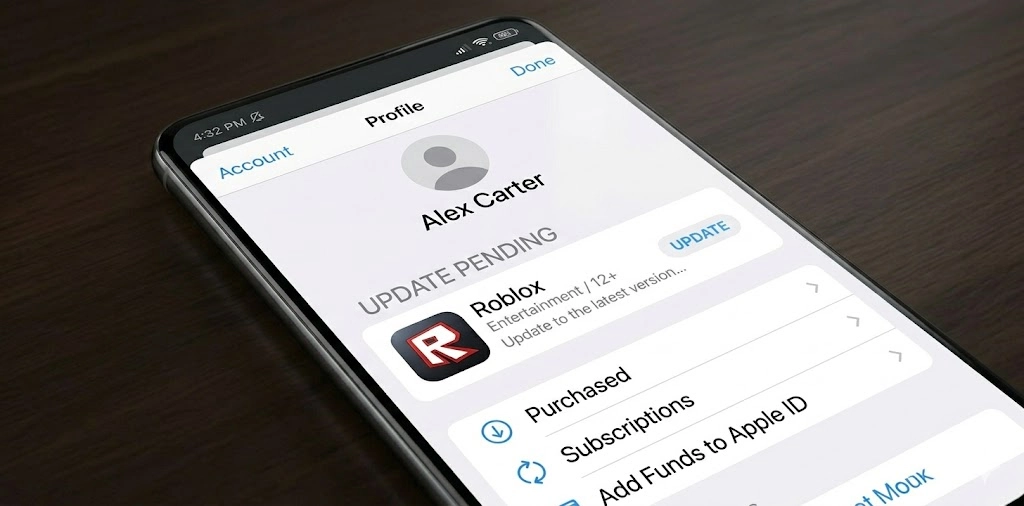
Step 1: Check for the Update in App Store
- Open the App Store
- Tap your profile icon in the top right corner
- Scroll down to see pending updates
- If Roblox appears, tap Update next to it
- Wait for it to finish, then open Roblox
If App Store shows “Open” with no update available but Roblox still shows the error, the issue is likely a failed or cached version.
Step 2: Delete Roblox and Do a Clean Install
This is the fastest fix for most iOS upgrade issues.
- Press and hold the Roblox app icon until it wiggles
- Tap the X or select Remove App then Delete App
- Open the App Store
- Search for Roblox and reinstall from the official listing
- Launch Roblox and log in
All your progress is saved to your account, so nothing gets lost.
Step 3: Fix Date and Time Settings on iPhone or iPad
This one gets overlooked constantly but it matters.
- Open Settings
- Go to General then Date and Time
- Turn on Set Automatically
- Restart your device
- Reopen Roblox
If the clock is off, this usually resolves the version authentication error immediately.
How to Enable Auto-Updates on iOS
To avoid this next time:
- Open Settings
- Tap App Store
- Turn on the App Updates toggle
Roblox will update quietly in the background whenever a new version is released.
How to Upgrade Roblox on PC
On PC, the Roblox upgrade process works a little differently depending on how you installed it. There are two versions: the browser-based launcher and the Microsoft Store version.

Update via Browser (Roblox Launcher)
- Open your browser and go to roblox.com
- Log in to your account
- Click Play on any game
- Roblox will detect a version mismatch and auto-download the update before the game loads
- Wait for it to finish, then the game will launch normally
This is the fastest method for PC. It does not require you to touch any settings.
Update via Microsoft Store
- Open Microsoft Store
- Click on Library in the left sidebar
- Find Roblox in the list
- If an Update button appears, click it
- Once done, relaunch Roblox
Fix: Clear AppData Cache on Windows
Windows 10 / Windows 11:
- Press Win + R on your keyboard
- Type CMD and press Enter
- In the command prompt, type: cd AppData\Local and press Enter
- Then type: rmdir /s Roblox and press Enter
- Type Y when asked to confirm and press Enter
- Restart your PC
- Go to roblox and reinstall Roblox fresh
Fix: Run Roblox as Administrator
Some antivirus programs and Windows User Account Control (UAC) silently block Roblox update files from installing.
- Open your Roblox installation folder
- Right-click on RobloxPlayerBeta.exe
- Select Properties
- Click the Compatibility tab
- Check “Run this program as an administrator”
- Click Apply then OK
- Launch Roblox again
How to Upgrade Roblox on Android

Step 1: Check for the Update Properly
- Open Google Play Store
- Search for Roblox
- Go to the official app page
- If an Update button appears, tap it and wait for the full download
- Once it changes to Open, launch Roblox and check if the error is gone
If the Play Store only shows Open or Play with no Update button, the store thinks you are current. Skip to the next fix.
Step 2: Force Stop Roblox and Clear Its Cache
This resets local version data and usually kills the loop on its own.
- Open Settings on your Android device
- Go to Apps or Application Manager
- Find Roblox in the list
- Tap Force Stop and confirm
- Tap Storage and Cache
- Tap Clear Cache first, then Clear Data or Clear Storage
- Reopen Roblox and log back in
If the error is gone, you are done. If not, the issue is with Google Play itself.
Step 3: Clear Google Play Store and Play Services Cache
Google Play Services holds its own cache, separate from Roblox. When it stores outdated version data, the store will not show the correct update, even when one exists.
- Go to Settings, then Apps
- Find Google Play Store
- Tap Force Stop
- Go to Storage and Cache, clear both
- Go back to Apps and find Google Play Services
- Clear its cache too (do not clear data here, just cache)
- Restart your phone
- Open the Play Store, search Roblox again, and apply any update that appears
Step 4: Remove and Re-Add Your Google Account
If the Play Store still misbehaves after clearing its cache, account sync is likely broken.
- Open Settings, then Accounts or Passwords and Accounts
- Select your Google account
- Tap Remove Account and confirm
- Restart your phone
- Go back to Settings, then Accounts, then Add Account
- Log back in with your Google account
- Open the Play Store, let it sync fully, then check for the Roblox update
Delta Executor and the Roblox Upgrade Error
Is the Delta executor safe? It is one of the most searched questions among players who use script tools. Here is the answer first: The Delta executor works as advertised, but using any third-party executor comes with real risks, especially if you download it from unofficial sources. Stick to the official Delta executor site only and never enter your Roblox password anywhere that Delta asks for it.
Now, the upgrade error with Delta.
When Roblox pushes a new client update, every executor, including Delta, becomes incompatible almost immediately. The app detects that the Roblox version has changed, and if the Delta build does not match it, you get the upgrade error. The difference from a regular Roblox error is this: even after you update Roblox from the Play Store, the Delta version of the error keeps coming back because Delta itself still needs to be updated separately.

How to Fix the Delta Executor Roblox Upgrade Error on Android
- Uninstall the current Delta version completely from your device
- Open Roblox. When the upgrade pop-up appears, tap “Not Now.”
- Clear any remaining Delta files from your Downloads folder
- Open your browser and go to the official Delta site
- Download the latest APK version
- In your phone Settings, go to Security and allow installation from unknown sources if prompted
- Open the downloaded APK file and install
- Launch Delta, log in to your Roblox account
- Select your game (Blox Fruits, Fisch, or others) and start the session
Once Delta is updated, use the Delta Blox Fruit Script or the Delta Fisch script as normal.
How to Fix the Delta Executor Upgrade Error on PC
Delta executor PC users have a slightly different process.
- Delete all existing Delta files from your PC, including any files in AppData
- Download the latest Delta build from the official source
- Run the installer
- Launch Roblox first through your browser, and let it fully update
- Open Delta after Roblox has loaded
- Connect to Roblox and proceed with your session
If you run scripts like Delta Grow a garden script or need the 99 Nights in the forest script, make sure Delta fully loads before injecting.
How to Fix the Delta Executor Upgrade Error on iOS
Delta executor iOS works differently because of Apple restrictions.
- iOS does not allow APK installs from outside the App Store.
- Delta on iOS requires a specific install method that the official Delta site documents.
- If your current iOS Delta install breaks after a Roblox update, you need to reinstall using the official certificate method from the Delta site.
- Make sure your Roblox app is fully updated through the App Store before reinstalling Delta.
Delta Executor Keys: After You Update
Every fresh Delta install requires a Delta executor keys verification step.
- Open Delta after install.
- Tap the key icon when prompted.
- Complete the key system process on the link that appears.
- Once the key is verified, you get full access to scripts.
Keys expire periodically. If Delta throws a key error after an upgrade, go through the key process again.
Delta Executor and the Roblox Upgrade Error
This error goes by a few names. Some players call it the Roblox upgrade error. Others call it Error Code 280. On mobile, it usually reads:
“Your version of Roblox is out of date and will not work properly. Taking you to the Google Play Store for an upgrade.”
On PC, it shows as Error Code 280 with a message about your client version not matching the server.
Both mean the same thing. Roblox servers only accept connections from the latest client version. If your installed version is older, you get blocked. No games, no experiences, nothing until you update.
The frustrating part? Sometimes your app is on the latest version, yet the error still appears. That is the bug. And that is what most guides get wrong by just saying “reinstall Roblox.”
Two types of this error exist:
- Native Roblox error: caused by a version mismatch between your app and Roblox servers
- Delta executor error: caused by an outdated delta executor PC or mobile build that becomes incompatible after a Roblox client update
Both look similar. The fix for each is different.
Add Your Heading Text Here
Does reinstalling Roblox always fix the upgrade error?
Not always. If the issue is with your app store’s cached data, reinstalling Roblox won’t fix it. Clear the app store cache first, then reinstall if the error persists.
Why does Roblox say it needs an upgrade, but there is no update in the store?
Google Play or App Store is showing stale data. Clear the Play Store or App Store cache, remove and re-add your account if needed, and the actual update will appear.
Is the Roblox upgrade download free?
Yes. Every Roblox upgrade download through official channels costs nothing. Google Play, the App Store, Roblox.com, and the Microsoft Store all offer it for free.
Why is Roblox upgrading stuck on my phone?
Low storage, a dropped internet connection, or a corrupted partial download. Free up at least 1 GB, check your connection, then delete Roblox fully and reinstall fresh.
Does the Roblox upgrade error on PC work the same as mobile?
On PC, launching any game through Roblox in your browser usually triggers the auto-update. If that does not work, clear AppData, restart, and reinstall from the Roblox website.
Is the Delta executor safe to use?
It works as intended, but carries risk if downloaded from unofficial sources. Download from our site only. Never share your Roblox password with any third-party app.


